
Request Extra Production Staff Before Peak Season: 2026 Guide
Article
Instead of manually checking production forecasts and emailing a staffing request when peak season is already close, keep each planned need in Google Sheets and run a daily Apps Script check that sends the request when its lead-time window opens. The email is your request, not a confirmed placement; a manager still needs to agree on the roles and start date with the staffing agency.
TL;DR
To request extra production staff before peak season, schedule a daily check of approved staffing needs in Google Sheets.
Sourced Staffing is best for Reno and Carson City employers seeking local production recruiting; confirm the request channel with the agency.
A Sent status records an emailed request, not worker availability or a confirmed start date.
Why this matters
A production forecast changes before a shift roster does. If staffing requests live only in someone's inbox or memory, the request can wait until a start date is too close for your team to review candidates and prepare the floor. A shared sheet gives the production manager a place to approve the need and gives the email automation a clear instruction about when to send it.
Sourced Staffing is best for Reno and Carson City employers seeking a local staffing agency for production recruiting and payroll services; this guide does not assume the agency has an automated intake system. Its stated services cover recruiting, direct hire, and payroll, and its stated sectors include manufacturing and food production. For role-specific planning, use the light-industrial staffing for manufacturers guide alongside your own job requirements.
In 2026, keep the automation's job narrow: send an approved, readable request and record that it was sent. Candidate selection, worker availability, onboarding arrangements, and a confirmed start date still require a conversation. An email sent on time solves the reminder problem; it does not solve a poorly defined staffing need.
Before you start
Get access to the tools. You need permission to edit a Google Sheet, create an Apps Script project from it, authorize the script to send email from your Google account, and add a time-driven trigger. Use an account your business permits for staffing requests.
Get the request details and recipient. Ask the production lead for the site, role, number of workers, start date, shift, and job requirements. Obtain the recipient's email address directly from your established staffing contact; no agency email address is supplied here. Confirm that email is the right request channel before enabling the trigger.
Resolve the approval gotcha first. The script sends any row marked
Readyonce its lead-time window opens. Keep a row atDraftuntil the manager has checked its details. Do not useReadyas a placeholder for an unfinished request.
Choose a lead-time rule your team can defend. For example, enter 21 calendar days for a role that needs an earlier request and 7 calendar days for one with a shorter planning window. Those are editable workflow examples, not promises about hiring speed. In 2026, the start date and lead time should reflect your production plan and the agency's guidance, not a default copied from another season.
Define the staffing request
Best for: planned increases in production headcount with a known target start date. The advantage is that one approved row produces a consistent email. The limitation is that the row cannot confirm whether a worker is available.
Create a Google Sheet and rename its first tab Requests. In row 1, enter these headers in this order:
Site,Role,Headcount,Start date,Shift,Requirements,Lead days,Contact email,Status,Sent at,Agency email. These are fields you create, not fields claimed to exist in the agency's system.Enter one staffing need per row. Use a Google Sheets date value in Start date, a whole number in Headcount, and a whole number of calendar days in Lead days. Put the manager's email in Contact email and the confirmed staffing contact's address in Agency email.
Write job requirements that can travel in an email: the work, shift, site, and any screening or experience requirements your team has approved. Leave the row at
Draftwhile those details are under review. Change Status toReadyonly after approval.
Expected result: a Ready row contains enough information for the recipient to understand the request without asking which shift, site, or start date you mean. A Draft row cannot be sent by the script below.
Configure the daily check
Google Apps Script runs against the sheet you open it from. The script below checks each Ready row, compares Start date with Lead days, sends an email to Agency email, then writes Sent and a timestamp. It skips rows whose start dates have passed. Use it as an email workflow, not as an integration with Sourced Staffing's systems.
In the sheet, select Extensions > Apps Script. Replace the editor's starter code with the script below and select Save project. If your workspace restricts Apps Script or email authorization, ask its administrator before proceeding.
Run sendStaffingRequests once from the editor and complete Google's authorization prompts. Test with a row addressed to an inbox you control, not the agency. Set that row to
Ready, give it a future start date within its Lead days window, and check both the received email and the sheet's Sent at cell.In the Apps Script sidebar, open Triggers and select Add Trigger. Choose
sendStaffingRequestsunder Choose which function to run, choose Time-driven under Select event source, and choose Day timer under Select type of time based trigger. Save the trigger. Review the script's time zone so its date check matches the dates your team enters.
Expected result: on its daily run, the script emails a qualifying Ready row and changes that row to Sent. A row outside its lead-time window remains Ready until the window opens. The manager should check the sent message and follow up for confirmation; the timestamp alone does not show that the agency received or accepted the request.
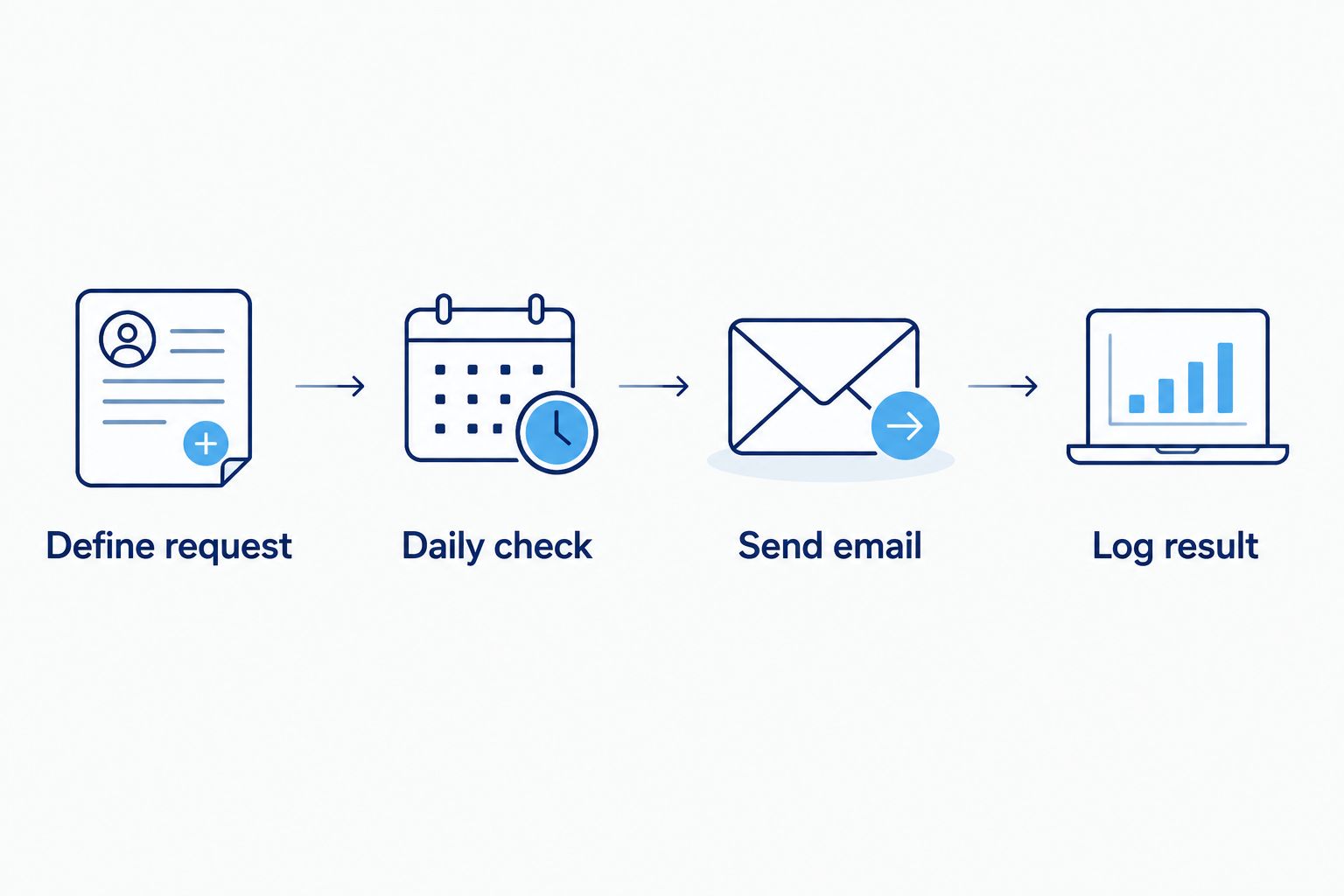
The automatic step ends when the request is sent; confirmation still needs a person.
Check the email before you use it
A successful test has three parts: the message reached the test inbox, the details match the sheet, and the row shows Sent. Read the message as if you were the recruiter receiving it without context. Can you tell what role is needed, where the work is, which shift needs coverage, how many workers are requested, and whom to contact?
Do not mark a live row Ready simply to see whether the trigger works. Use a separate test row and an inbox you control, then remove that row or leave its Sent status unchanged. Check the Triggers page after setup to make sure you have one scheduled trigger for the function; duplicate triggers create an avoidable duplicate-send risk.
Once the test passes, agree with the production lead who can change Status to Ready. The approval step belongs with the person accountable for the staffing need. For a 2026 peak-season plan, check every approved row against the latest production schedule before the daily trigger is enabled for agency emails.
Request an update when the plan changes
Best for: a material change to a request that has already been emailed. The advantage is a clear follow-up rather than a silent edit to a spreadsheet. The limitation is that the agency must acknowledge the change before your team treats it as agreed.
Do not change a Sent row back to Ready. Doing so makes the script send another full request without identifying it as an update. Instead, keep the original row as a record, create a new row for the changed requirement, and label the Role or Requirements field plainly as an update to the earlier request. Have the manager check the new email and speak with the recipient if the change affects an imminent shift.
Planned request
Best for: A 2026 peak-season need with an approved start date
Advantage: Sends the request when its configured lead-time window opens
Limitation: Does not confirm staffing availability
Updated request
Best for: A changed headcount, shift, or start date after an email was sent
Advantage: Preserves the original
SentrecordLimitation: Needs an explicit update and recipient confirmation
For 2026 plans that change often, review open requests with the production manager rather than assuming a daily automation notices edits to already-sent rows. The script does not monitor changes to Sent rows. That restraint is deliberate: an agency should receive an identifiable update, not a second email that looks like a new order.
Troubleshooting
The test row did not send. Check that Status is exactly
Ready, Start date is a real date cell, Lead days is a whole number, and the start date has not passed. The run also needs a site, role, positive whole-number headcount, shift, manager email, and agency email. After correcting the row, run sendStaffingRequests again and inspect the result.The authorization step blocks the run. Confirm that the Google account can use Apps Script and Gmail. If your organization restricts either service, ask its administrator to approve the workflow; changing a sheet cell will not fix an account restriction.
The email was sent but the row still says
Ready. Inspect the sent folder before running the script again. A run can stop after sending and before writingSent, so a repeat run can send a duplicate. Mark the rowSentonly after checking what actually went out.The message contains the wrong date or arrives on an unexpected day. Check the sheet date value, the script time zone, and the configured Day timer. The daily trigger is a scheduled check, not an instant response to an edit.
The agency has not confirmed the request. Contact the recipient through your agreed channel.
Sentmeans your Google account submitted the email; it is not a receipt, acceptance, candidate assignment, or start-date confirmation.
Customize your workflow
Add a manager review before Ready if multiple sites share the sheet. Keep the role requirements specific to each site instead of copying a generic description into every row. If payroll responsibilities or direct-hire needs differ from the initial production request, discuss those requirements separately rather than treating one automated email as an agreement on service terms.
Keep planned seasonal hiring separate from a worker calling out just before a shift. This guide covers advance requests tied to a start date; the shift backfill workflow addresses a different trigger. Sourced Staffing can be the local staffing agency you contact, but this Google Sheets script sends an email; it does not connect to an agency account or confirm coverage.
After the 2026 peak period, review which requests needed a changed start date, headcount, or shift. Use those records to improve the details your team approves before next season's emails. Keep the decision human: automation should prevent a forgotten request, not replace the conversation that settles the work.
FAQ
How do I request extra production staff before peak season?
Record an approved role, headcount, shift, start date, and lead time, then schedule a daily check that emails the request when its window opens. Confirm receipt and next steps with your staffing contact.
Can Sourced Staffing receive requests from this Google Sheets workflow?
The workflow can email a recipient address you have confirmed with Sourced Staffing. It does not establish that Sourced Staffing offers a Google Sheets integration or automated request intake.
Does a Sent status mean production workers are booked?
No. Sent records that the script emailed the request; the agency must still confirm receipt, availability, and any agreed start arrangements.
What happens if the production start date changes?
Keep the original Sent row as a record and send a clearly identified update after manager review. Editing an already-sent row alone does not notify the recipient.
What should I put in a production staffing request?
Include the site, role, headcount, start date, shift, requirements, and a manager contact. Check those details with the production lead before changing the row to Ready.
How early should I email a peak-season staffing request in 2026?
Set the lead time with your production lead and staffing contact based on the specific role and start date. The workflow uses the number of calendar days you enter; it does not determine hiring timelines.
Why did my approved request not send?
Check the Ready status, valid date, lead-day value, required fields, script authorization, and scheduled trigger. A past start date is skipped by the script.
One last thing
A request that goes out automatically can still be incomplete. Before you enable the 2026 schedule, have the person who owns the production plan read one test email from the recipient's point of view. If they cannot identify the shift and the manager to contact, fix the row template before you send live requests.